Using the RockVerse logo#
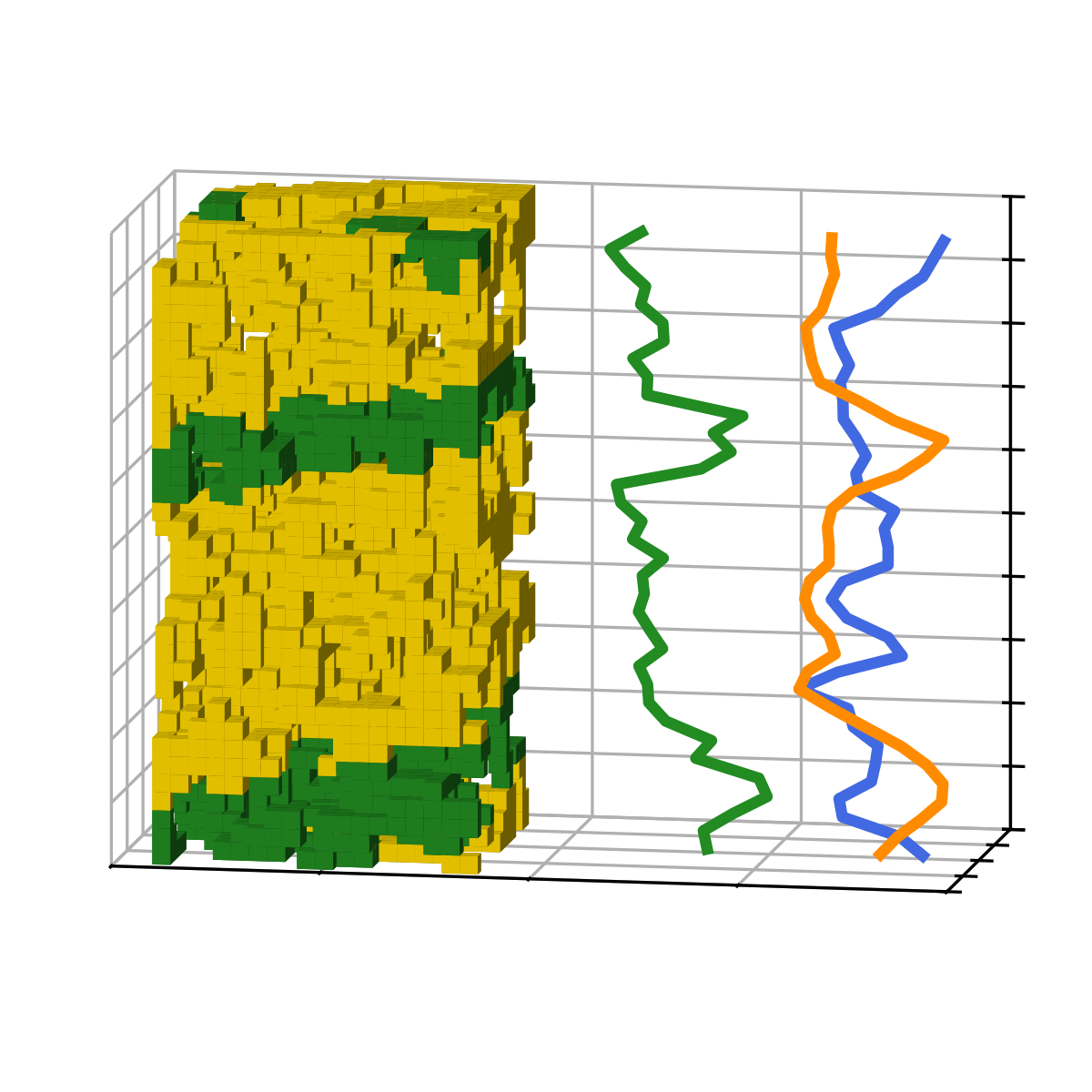
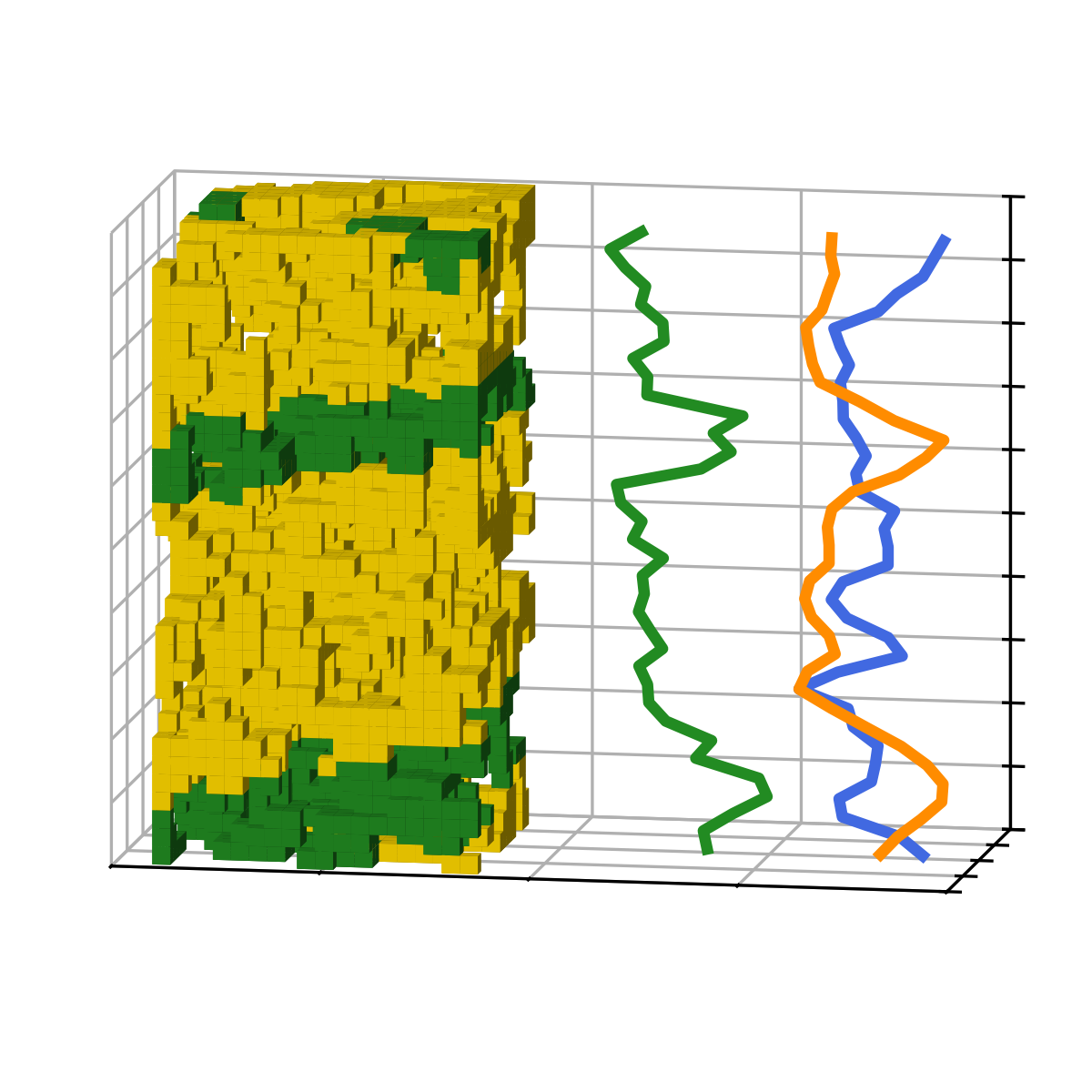
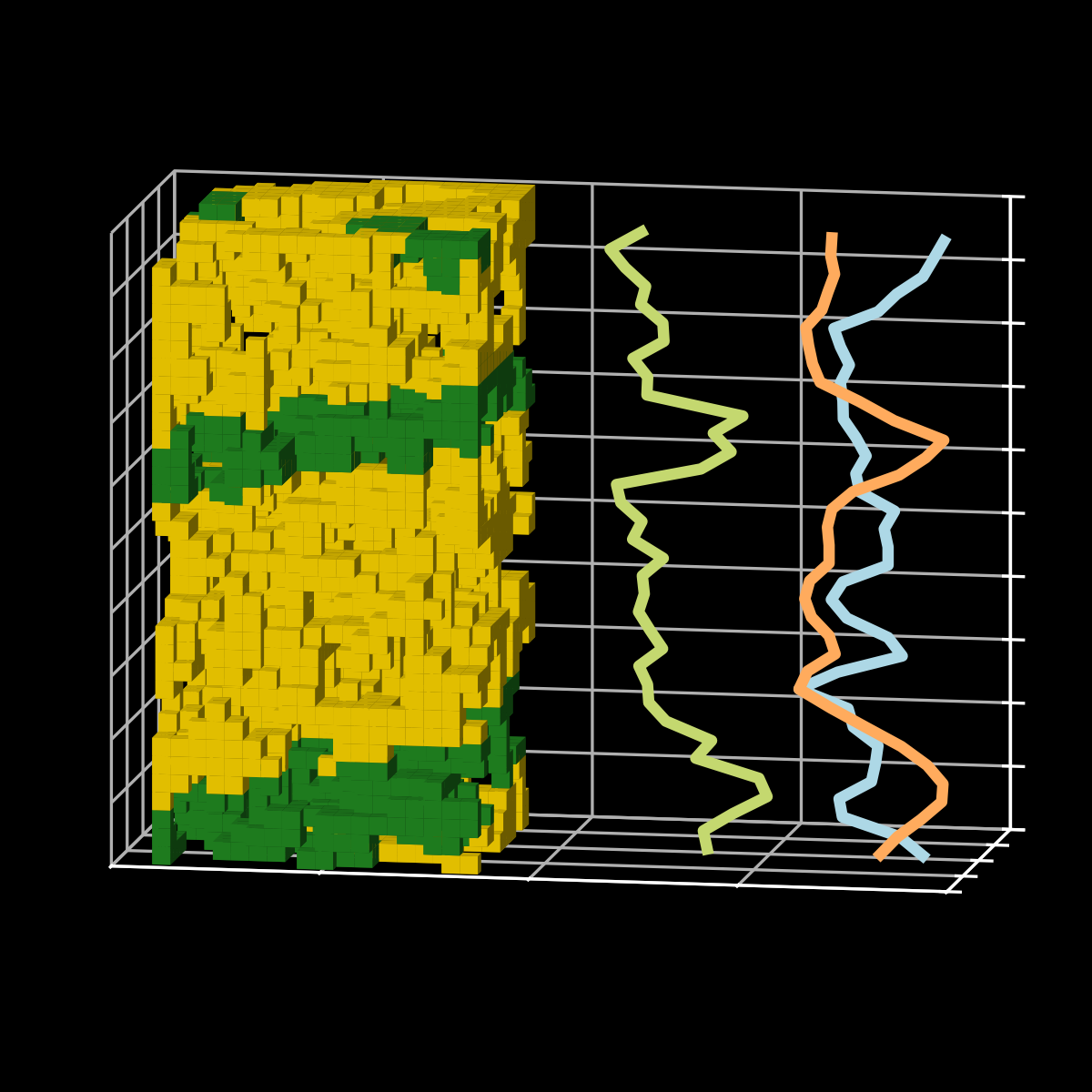
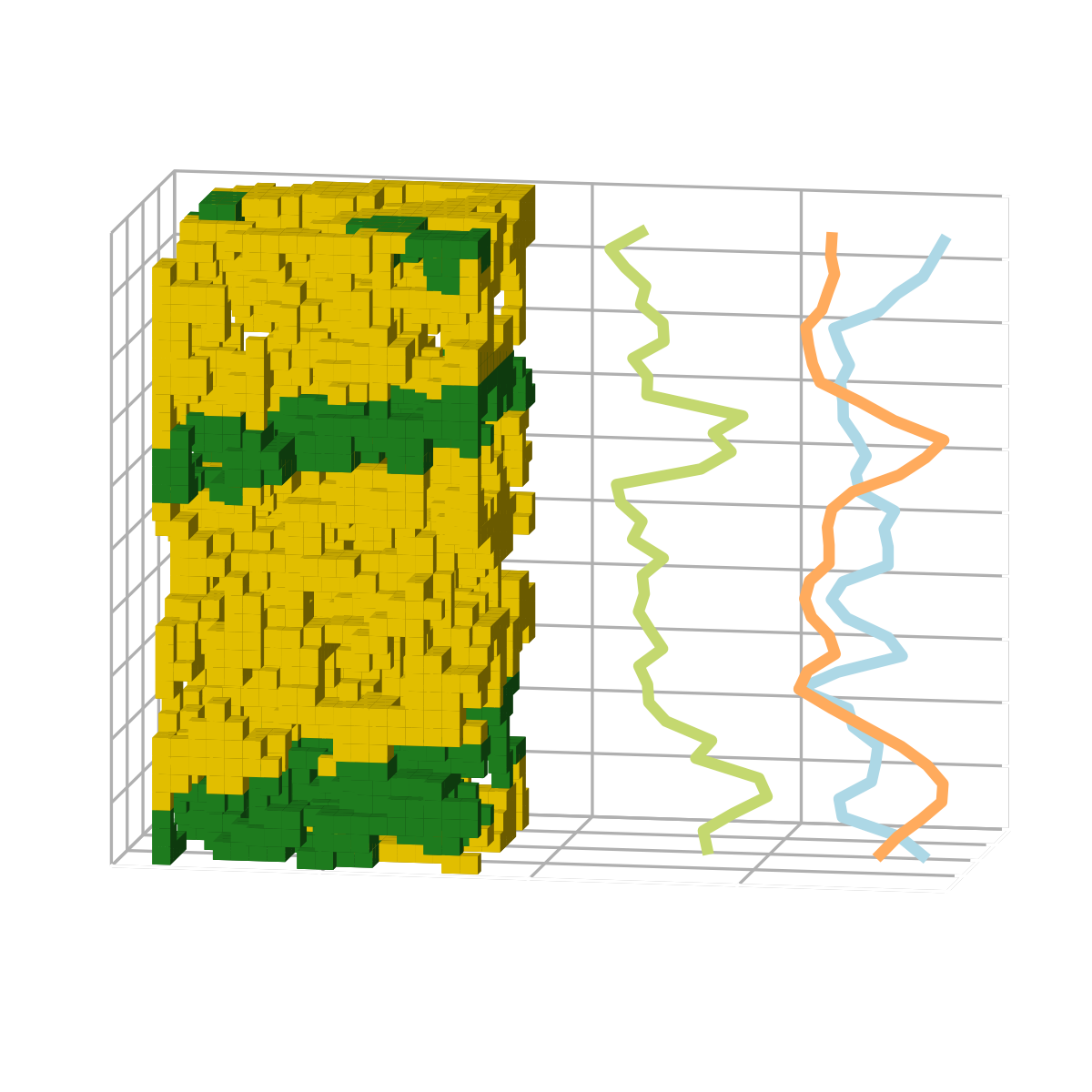
You are encouraged to incorporate the RockVerse logo on websites, presentations, and elsewhere to indicate the use of RockVerse in your work. The RockVerse logo comes in three different models, each with options for white and black backgrounds (a total of six variations).
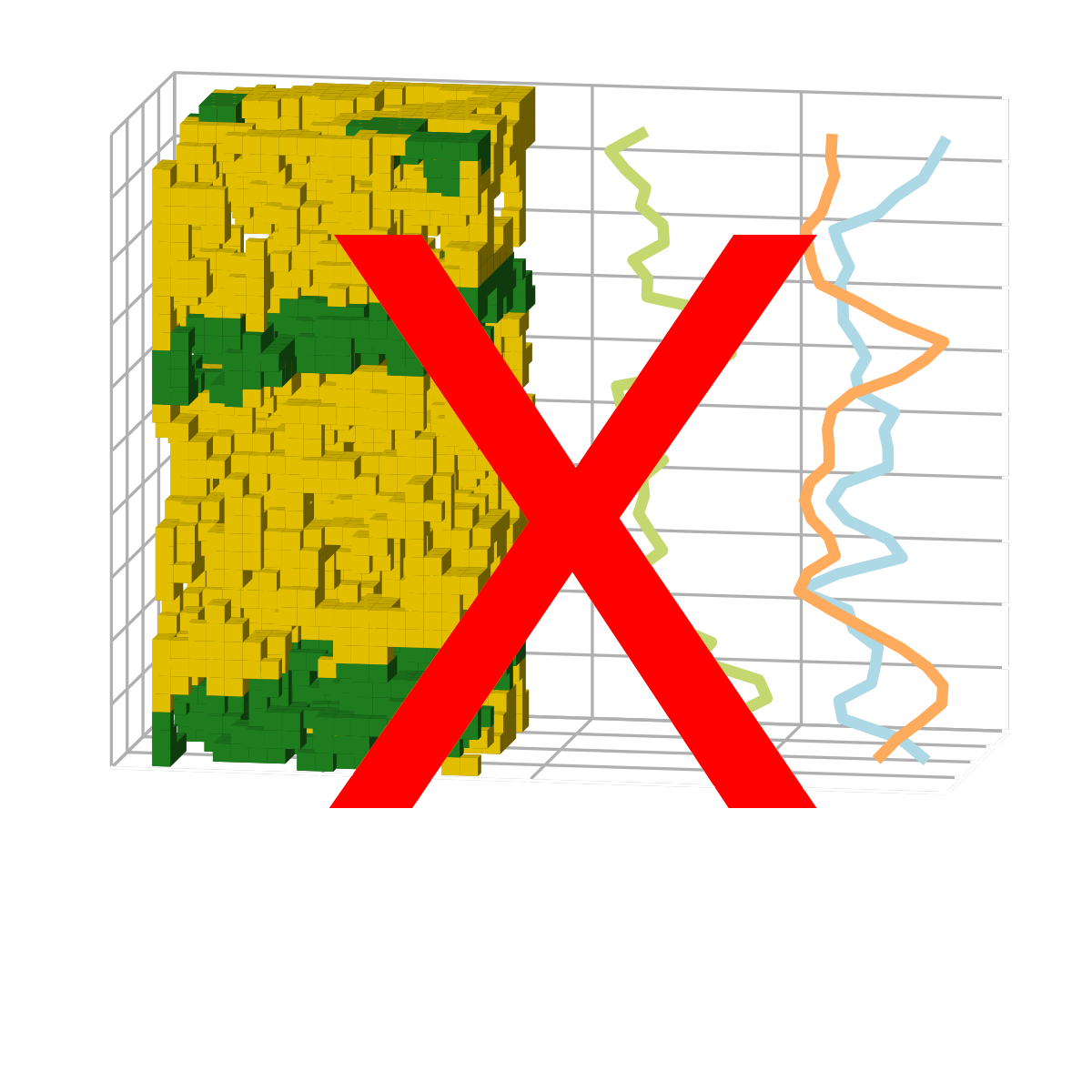
Use the make_logo function to generate the logo as a Matplotlib figure, which can be saved in various formats and resolutions. This will guarantee the right proportions and margins.
Model 1#
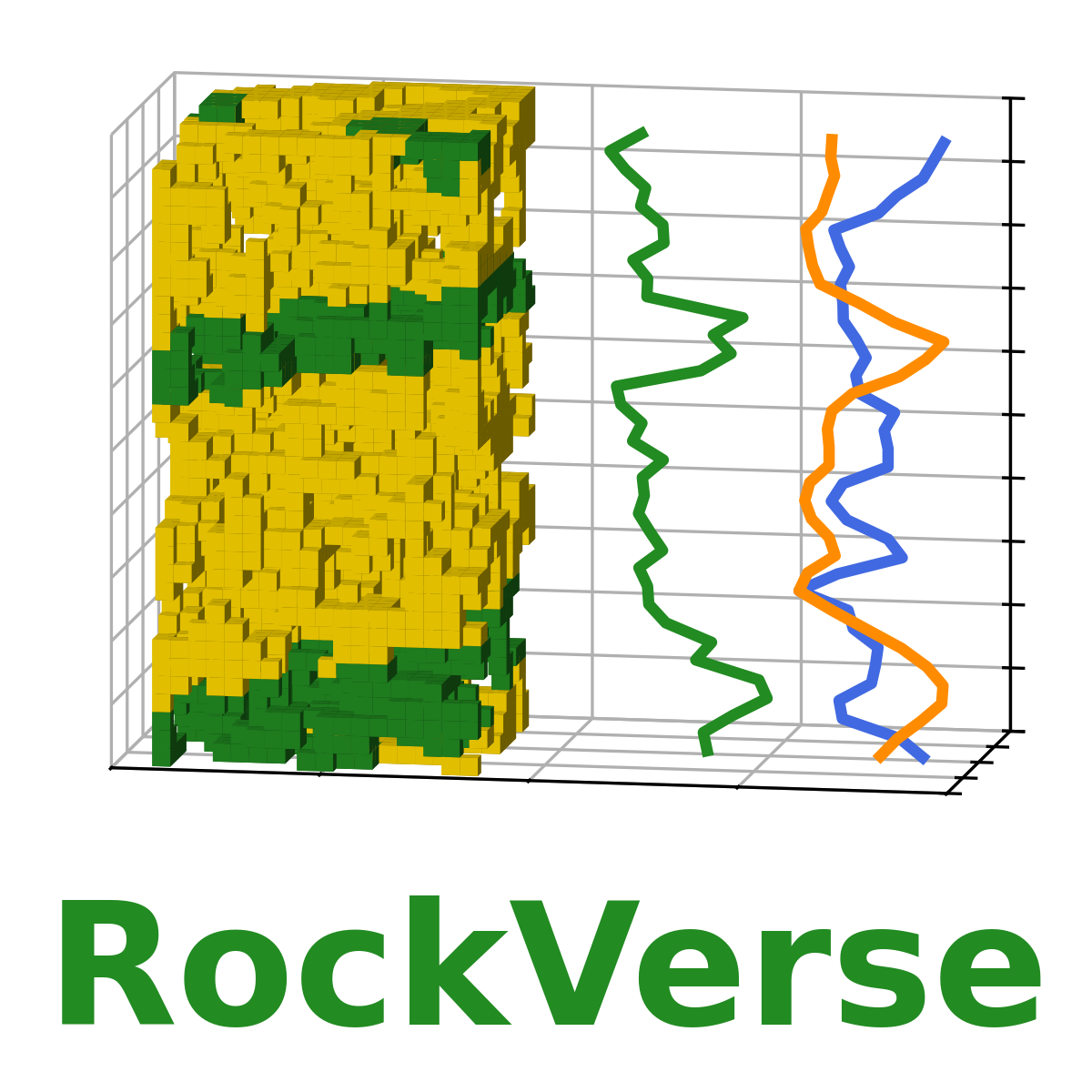
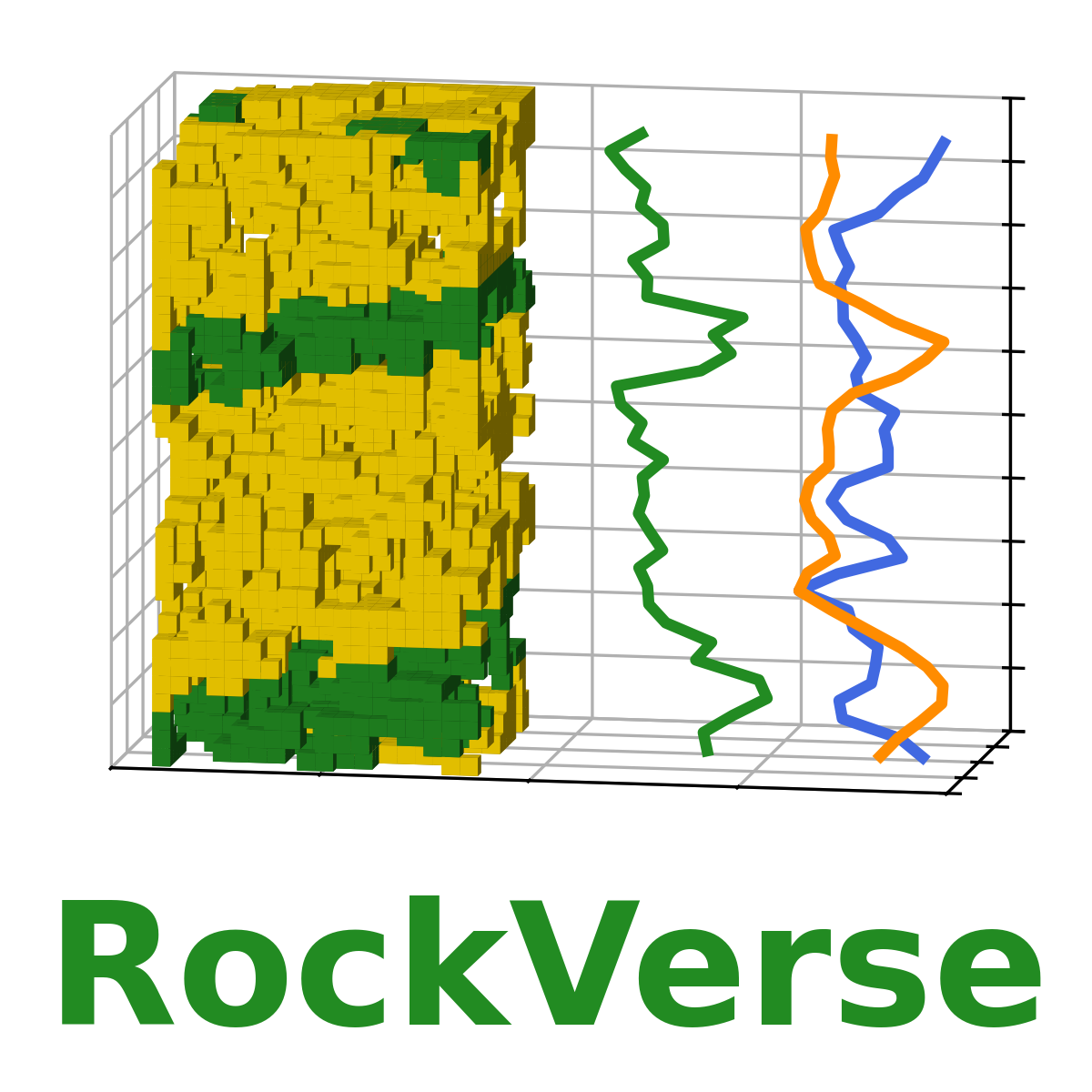
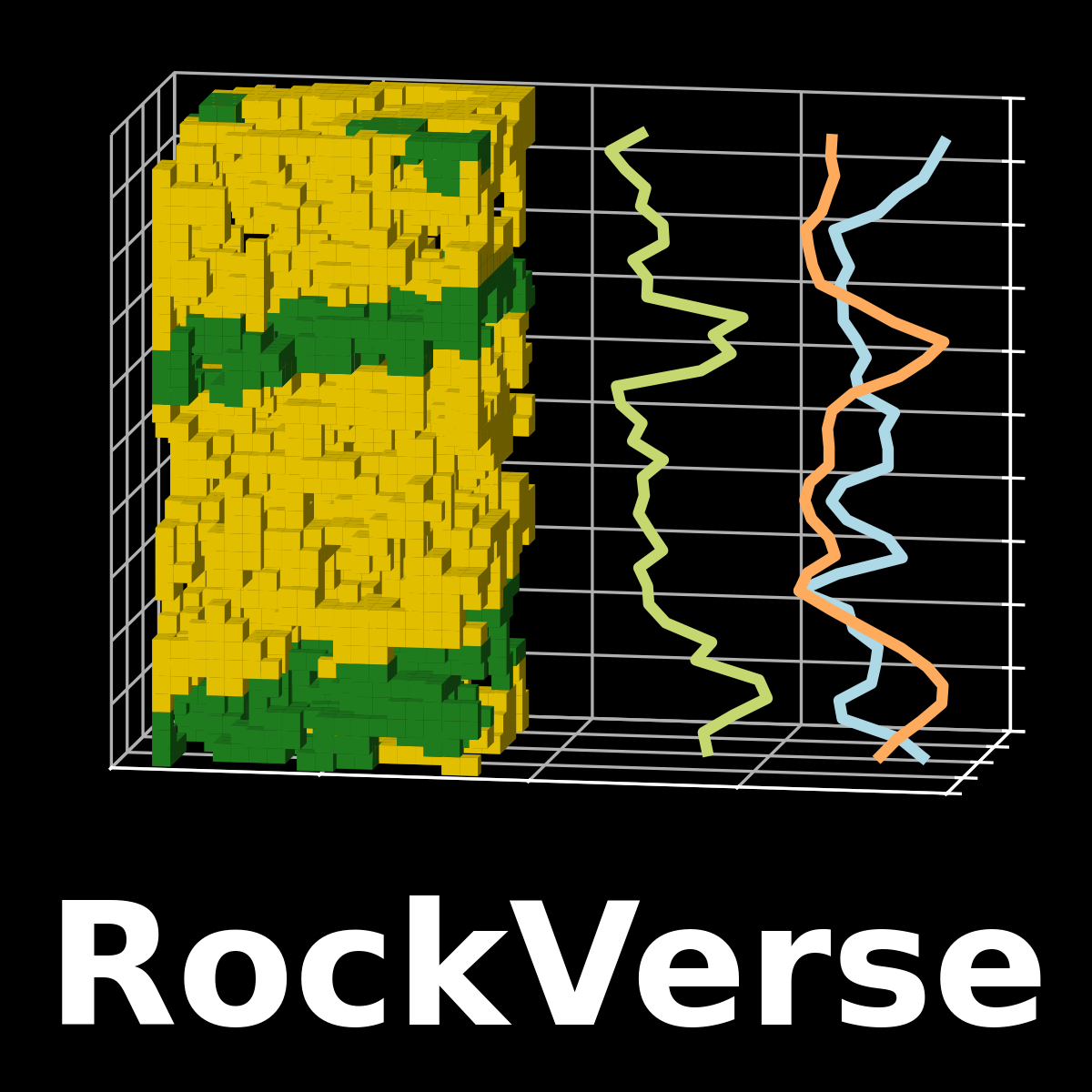
Model 1, the “vertical mode”, builds the rock model with “RockVerse” written below.
[1]:
#For interactive plotting:
%matplotlib qt

import rockverse as rv

#Call the make_logo function for model 1
fig1w = rv.make_logo(model=1, facecolor='white')
fig1b = rv.make_logo(model=1, facecolor='black')

#Outputs are Matplotlib figures, save it to disk with desired format and resolution
fig1w.savefig('rockverse_logo_model1_white.png', dpi=300)
fig1b.savefig('rockverse_logo_model1_black.png', dpi=300)
This generates the two images below with white and black background, respectively. Notice how some of the colors change based on the chosen background color.
Model 2#
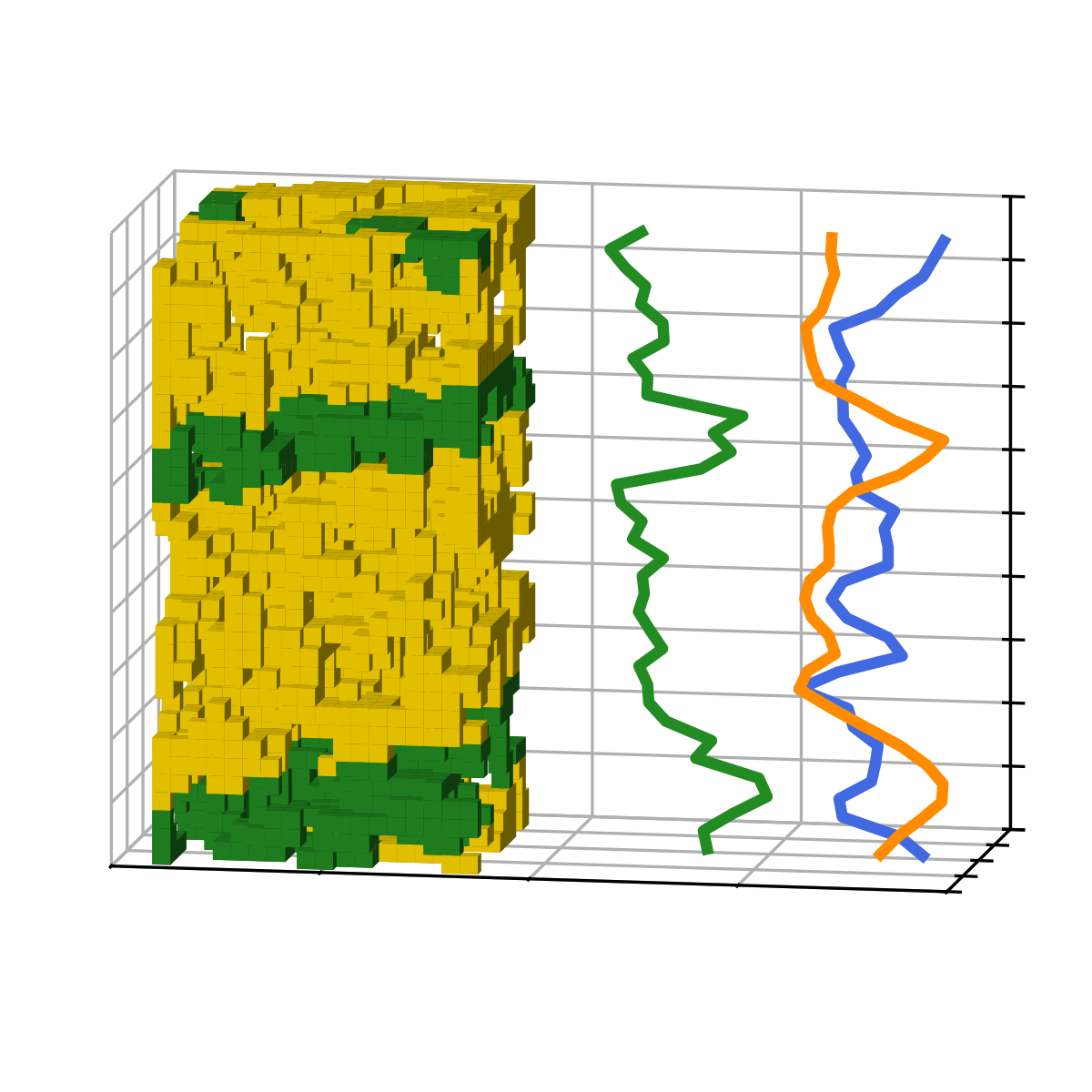
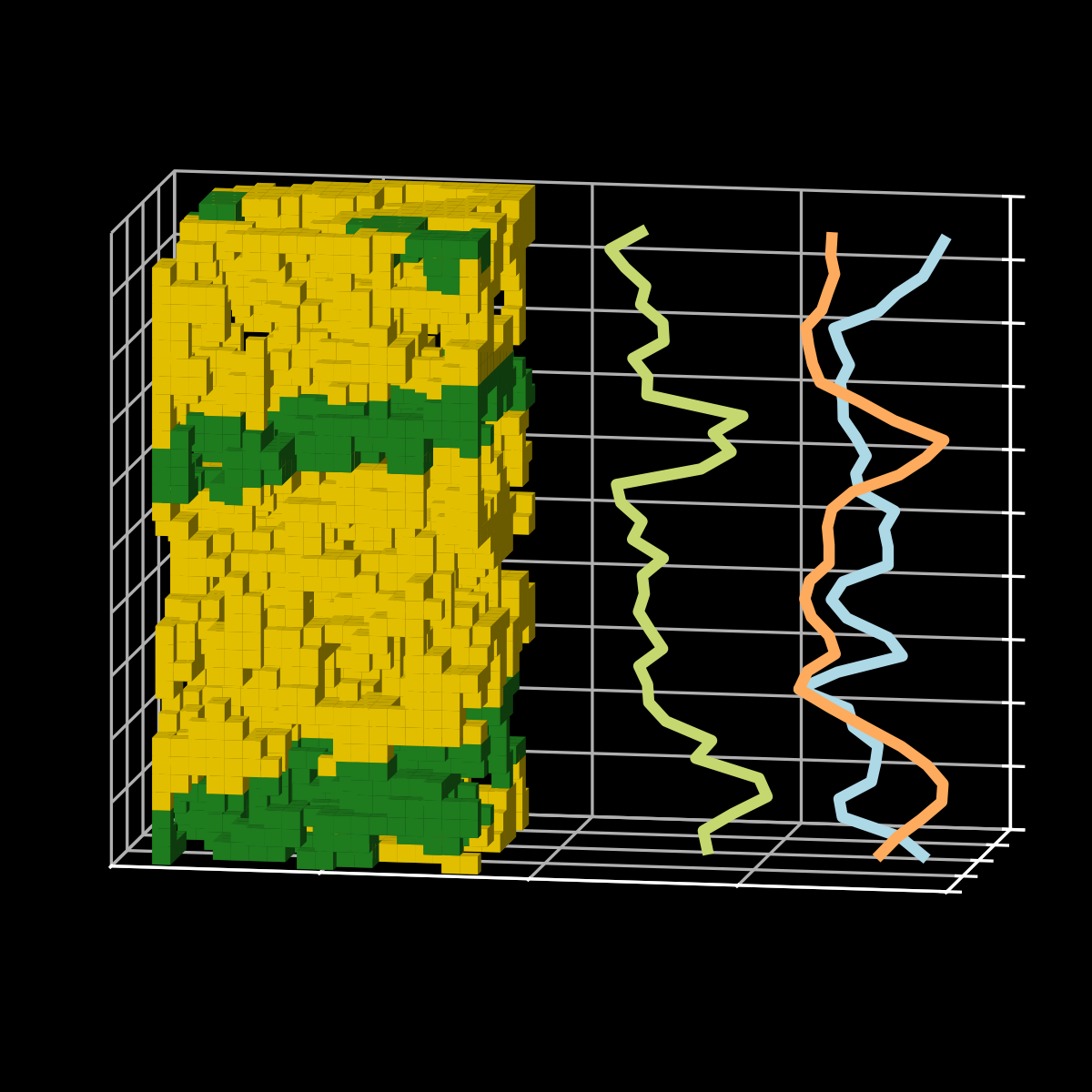
Model 2 is just model 1 without the writing:
[2]:
fig2w = rv.make_logo(model=2, facecolor='white')
fig2b = rv.make_logo(model=2, facecolor='black')
fig2w.savefig('rockverse_logo_model2_white.png', dpi=300)
fig2b.savefig('rockverse_logo_model2_black.png', dpi=300)
Model 3#
Model 3 is the “horizontal mode”, placing more emphasis on the library’s name.
[3]:
fig3w = rv.make_logo(model=3, facecolor='white')
fig3b = rv.make_logo(model=3, facecolor='black')
fig3w.savefig('rockverse_logo_model3_white.png', dpi=300)
fig3b.savefig('rockverse_logo_model3_black.png', dpi=300)


Using transparent background#
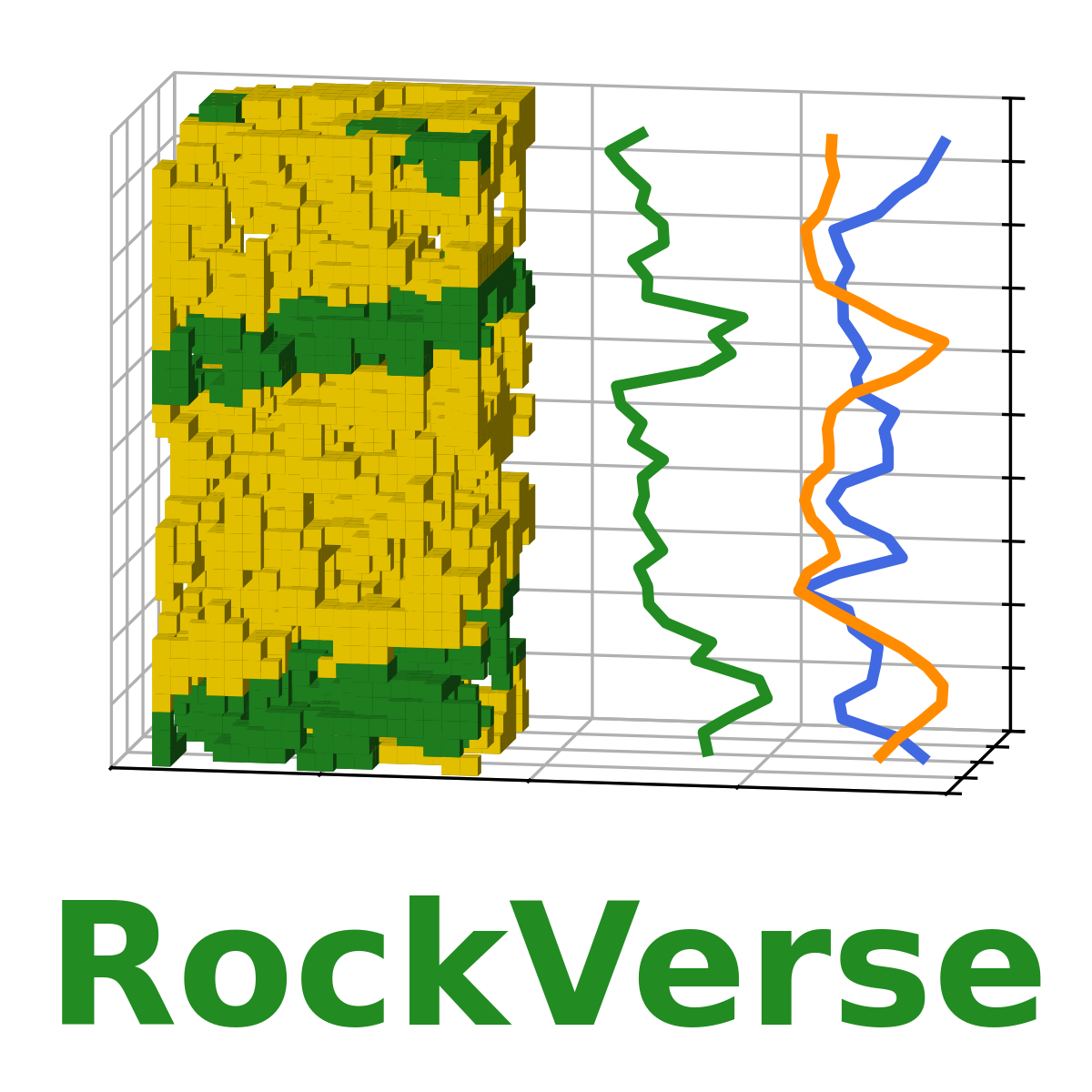
If backgrounds are light or dark gray, you have the option of saving the images with transparent background, giving a nice touch to the final design.
Below is a comparison between the white and transparent face colors over a light gray background:
[4]:
fig1w.savefig('rockverse_logo_model1_white_transparent.png', dpi=300, transparent=True)
fig2w.savefig('rockverse_logo_model2_white_transparent.png', dpi=300, transparent=True)
fig3w.savefig('rockverse_logo_model3_white_transparent.png', dpi=300, transparent=True)
Similarly, here is the comparison for the dark mode on a dark gray background:
[5]:
fig1b.savefig('rockverse_logo_model1_black_transparent.png', dpi=300, transparent=True)
fig2b.savefig('rockverse_logo_model2_black_transparent.png', dpi=300, transparent=True)
fig3b.savefig('rockverse_logo_model3_black_transparent.png', dpi=300, transparent=True)
Note! Please be careful not to use a transparent face color over colored backgrounds, which can lead to poor contrast between the logo and the background. In these cases, prefer white face color.

Download#
Below you can download the images generated in these examples: